Visual Studio
Thinking about trying a newer version of Visual Studio without changing your current setup? Good news: different major versions of Visual Studio can be installed on the same computer and used independently.
How It Works
Visual Studio 2022 and Visual Studio 2026 are designed to support side-by-side installation. Installing the newer version does not replace or uninstall the older one. Each version maintains its own:
- Installation files
- Settings and preferences
- Workloads and components
- Extensions and add-ins
This makes it easy to test new features while continuing to work on existing projects in a stable environment.
Benefits
- Keep production work on a familiar version
- Explore new tools and features safely
- Compare behavior between versions
- Gradually migrate projects when ready
Things to Consider
- Additional disk space is required because both versions are installed separately.
- Extensions usually need to be installed for each version individually.
- Opening a project in a newer version may introduce changes that are not fully compatible with older versions.
Recommended Approach
Many developers keep the older version for day-to-day work and install the newer version for testing, learning, and evaluating new capabilities. This provides flexibility while reducing the risk of disrupting existing projects.
For most users, running both versions side by side is the safest and most practical way to evaluate a new Visual Studio release.
If you recently updated Visual Studio Code and noticed that GitHub.copilot appears crossed out or marked as deprecated, you are not alone. Many developers think the extension was removed, but the real reason is simpler: GitHub changed how Copilot works inside VS Code.
In older versions, users needed two separate extensions:
GitHub.copilotfor code suggestionsGitHub Copilot Chatfor AI chat features
Now, GitHub has merged the main experience into GitHub Copilot Chat. The old standalone extension is deprecated and no longer recommended. That is why VS Code shows it with a strike-through message.
The solution is straightforward:
- Uninstall the old
GitHub.copilotextension - Install or enable
GitHub Copilot Chat - Sign in with your GitHub account
- Enable inline suggestions if needed through VS Code settings
This change helps simplify the setup process and reduces compatibility problems between multiple Copilot extensions. It also prepares VS Code for newer AI features that are being integrated directly into the editor.
If inline suggestions are not appearing after installation, use the Command Palette and run:GitHub Copilot: Enable
For most users, switching to the new extension fully restores the Copilot experience.
How to disable Perfwatson2.exe from Visual Studio (March 8, 2017)
To stop PerfWatson2.exe, a background process in Visual Studio that tracks performance issues, go to Help > Privacy > Privacy Settings and opt out of the Visual Studio Experience Improvement Program. In earlier Visual Studio versions, select Send Feedback > Settings and uncheck participation. Alternatively, use the registry path HKEY_LOCAL_MACHINE\SOFTWARE\Microsoft\VSCommon\... and set OptIn to 0 to disable it permanently.
.NET Multi-platform App UI has graduated from preview and is available in the release edition of Visual Studio 2022 on Windows. Now, you have full access to productivity features that will help you build cross-platform native client apps with .NET faster than ever, and ship them to Android, iOS, macOS, and Windows from a single codebase.
.NET MAUI provides a single project that handles all the multi-targeting across devices and their platforms.
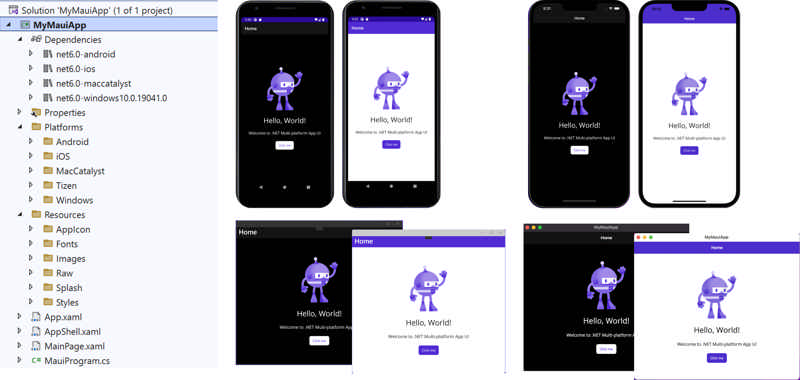
Source: Productivity comes to .NET MAUI in Visual Studio 2022 - .NET Blog (microsoft.com)
- .NET
- Agile
- AI
- ASP.NET Core
- Azure
- C#
- Cloud Computing
- CSS
- EF Core
- HTML
- JavaScript
- Microsoft Entra
- PowerShell
- Quotes
- React
- Security
- Software Development
- SQL
- Technology
- Testing
- Visual Studio
- Windows